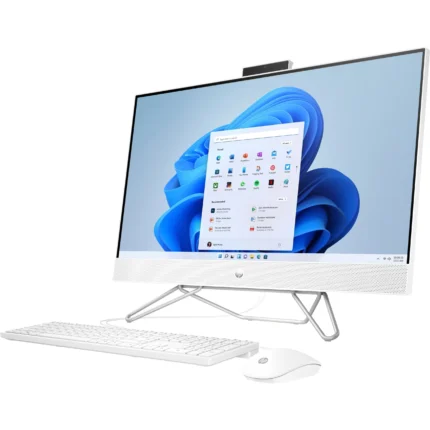


Buying a refurbished computer can be a smart way to get great performance at a lower price — but only if you choose wisely. Here’s a complete checklist to help you make a safe and satisfying purchase.
1. Buy from a Trusted Seller
🛡️ Why it matters:
Not all refurbished products are created equal. A reputable seller offers tested, quality units and often includes support or a warranty.
Good sources include:
- Official manufacturer refurb stores
- Certified retailers
- Well-rated local computer shops
💡 Avoid unknown sellers with no reviews.
2. Understand What “Refurbished” Means
There are different levels of refurbishment:
🔹 Manufacturer refurbished: Inspected, fixed, and repackaged by the original brand
🔹 Seller refurbished: Fixed and tested by a retailer or refurb specialist
🔹 Open box: Returned product that was barely used
Each might look different in price and quality — know which one you’re getting.
3. Check Warranty and Return Policy
📦 Important:
A good refurbished computer should come with a warranty (30–90 days at least) and a return policy.
Ask:
- How long is the warranty?
- What does it cover?
- Can I return it if it fails soon after purchase?
If there’s no warranty — be cautious.
4. Inspect the Physical Condition
💻 Before buying (especially in person), check for:
✔ Scratches or dents
✔ Screen quality (dead pixels, brightness)
✔ Keyboard and touchpad function
✔ Loose hinges or damaged ports
Even refurbished devices should look and feel well-kept.
5. Know the Specs Clearly
Specs determine how fast and powerful the computer is:
📌 Processor (CPU): Intel Core i5/Ryzen 5 or better for most users
📌 RAM: At least 8GB (16GB for gaming/design)
📌 Storage: SSD preferred (faster than HDD)
📌 Battery health: Especially for laptops
Ask the seller for the exact specs — not just general categories like “good for school.”
6. Ask About Battery Health (For Laptops)
🔋 Batteries wear out over time. A refurbished laptop’s battery might not hold charge well.
Ask:
- What’s the current battery capacity?
- Does it still hold good charge?
- Can it be replaced?
Good battery health is essential for users who move around a lot.
7. Test the Computer Before Paying
If possible, turn it on and try it:
🎯 Check:
- Startup time
- Keyboard & trackpad
- Wi-Fi connectivity
- Speakers & camera
- USB and HDMI ports
Don’t be shy — a quick test saves headaches later.
8. Check for Pre-Installed Software
🔍 A refurbished computer should have:
✔ A genuine operating system (like Windows 10/11)
✔ No trialware you don’t need
✔ Updated drivers
If the OS is missing or fake, you might have to pay extra later.
9. Ask About Upgrades & Support
Some refurbished computers allow future upgrades:
💡 Useful upgrades:
- More RAM
- Bigger SSD
- Better cooling
Also ask:
- Do you offer support or repair after purchase?
10. Compare Prices Before You Buy
Just because it’s “refurbished” doesn’t mean it’s the best deal.
💸 Compare with:
- New models with similar specs
- Other refurbished listings
- Local vs online prices
Sometimes a small price difference gets you a new device with full warranty.
11. Look for Reviews & Ratings
Before buying:
🔎 Search for:
- Seller reviews
- Product model reviews
- Common issues
If many users complain about the same problem — reconsider.
12. Verify Security & Privacy
Refurbished computers must be wiped completely:
✔ No old data from previous owners
✔ Fresh OS install
✔ Reset to factory settings
If not, ask the seller to wipe it before handover.
Final Tips
✅ Always ask questions
✅ Check physical condition
✅ Test before paying
✅ Compare prices
✅ Get warranty & receipt
Final Thought
Refurbished computers can be excellent value — as long as you buy smart. Use this checklist to avoid surprises and choose a machine that’s reliable, fast, and worth every shilling.